To complete the registration you will need to follow the link sent to your email address.
Setting up ANPR for cameras without a built-in analytics module
Last update: 29.12.2025
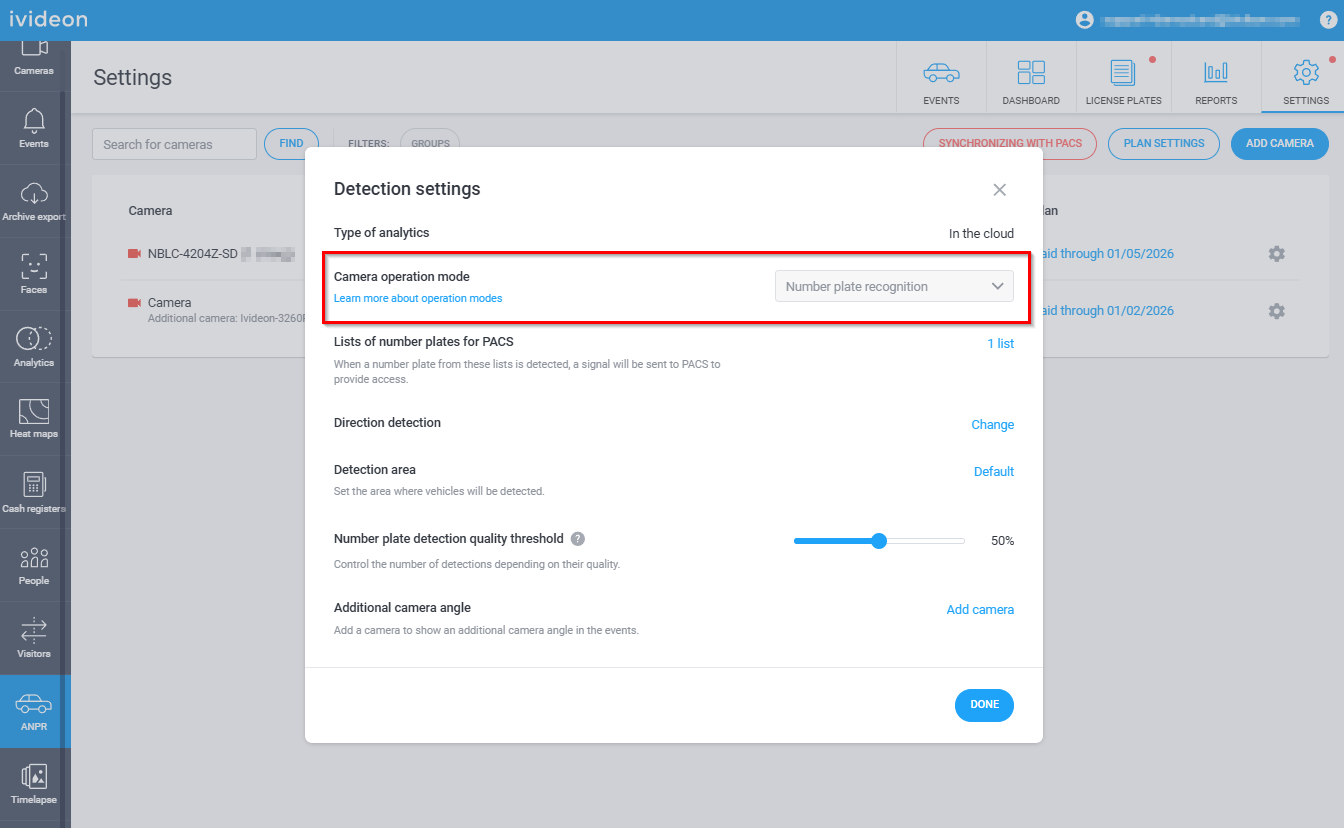
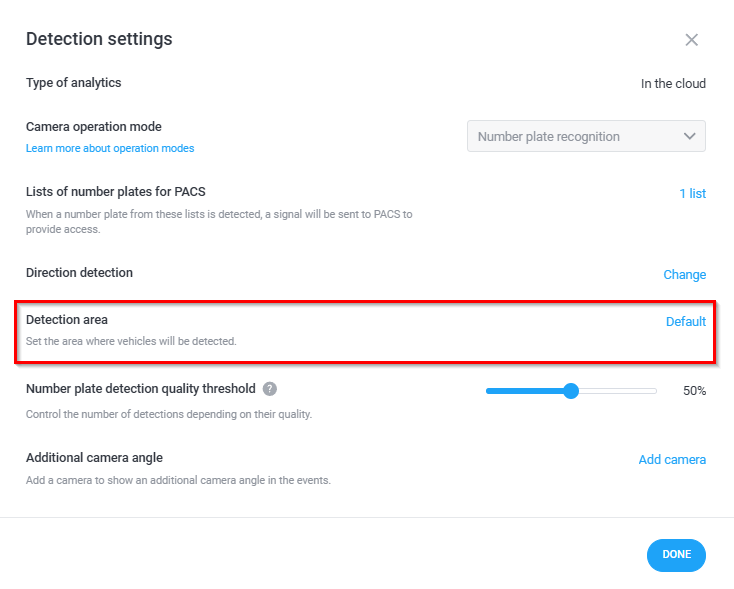
License plate recognition for cameras without a built-in analytics module is configured in the Ivideon personal account. To do this, go to the ANPR - Settings section in your personal account and click the settings icon (gear) next to the camera name in the list.
In the window that opens, you can configure the following parameters:
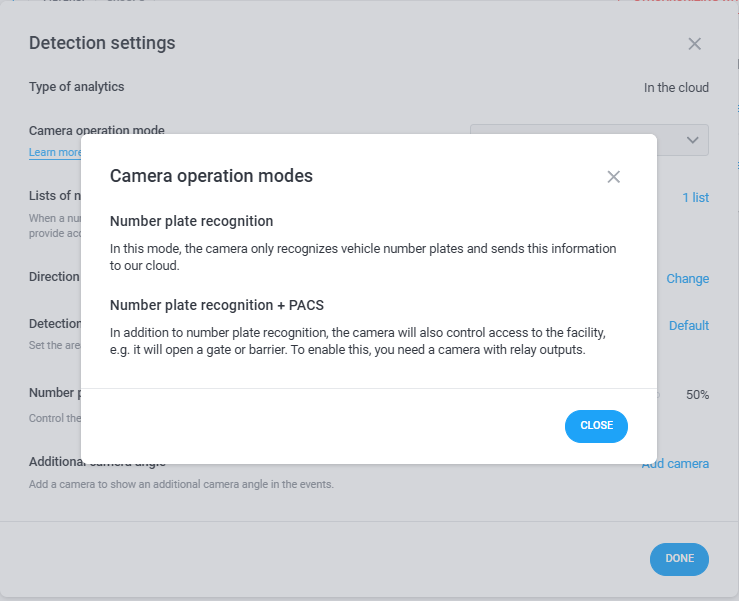
1. Camera operation mode:
License plate recognition: The camera recognizes vehicle license plates and sends this information to our cloud.
License plate recognition + ACMS (Access Control and Management System): The camera additionally manages access to the facility: for example, it opens gates or a barrier. This option is only available for cameras with relay outputs.
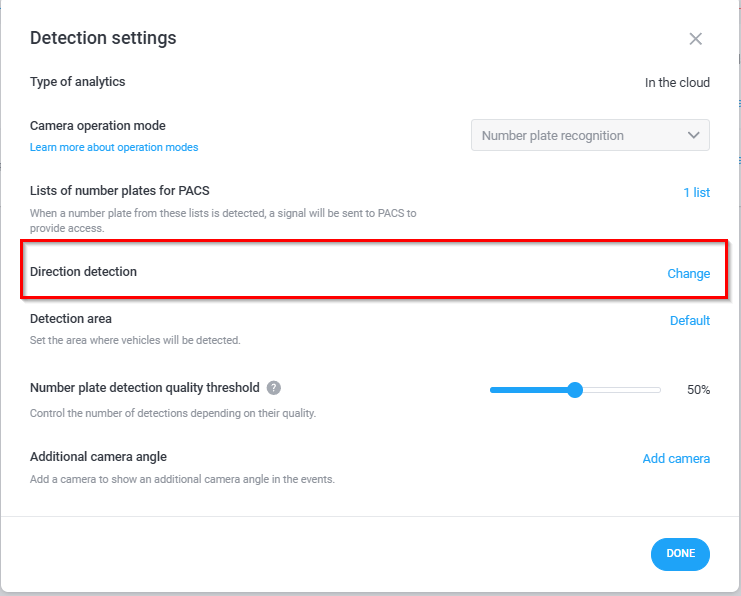
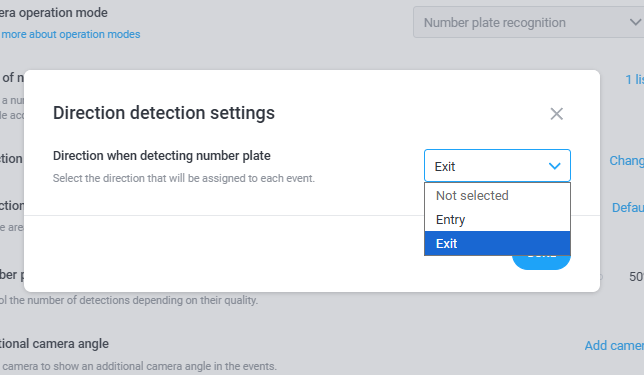
2. Direction detection: Select the direction of movement that will be assigned to each event.
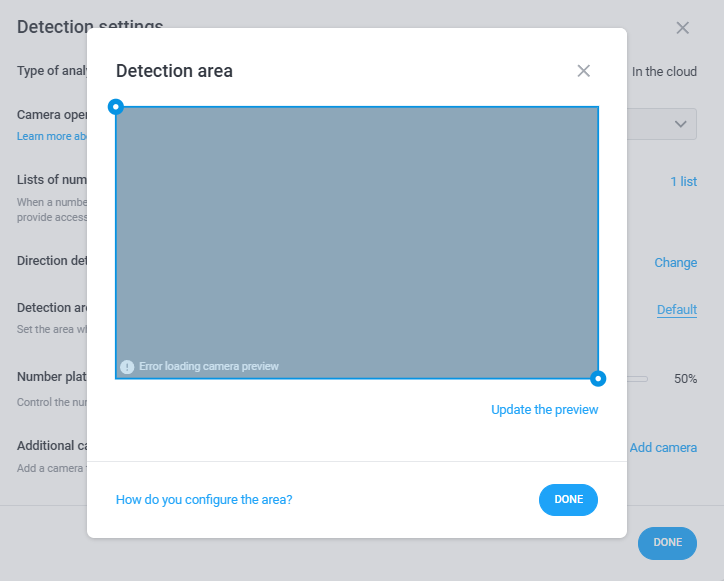
3. Detection zone: You can limit the area where license plate recognition will occur. By default, the entire frame is selected.
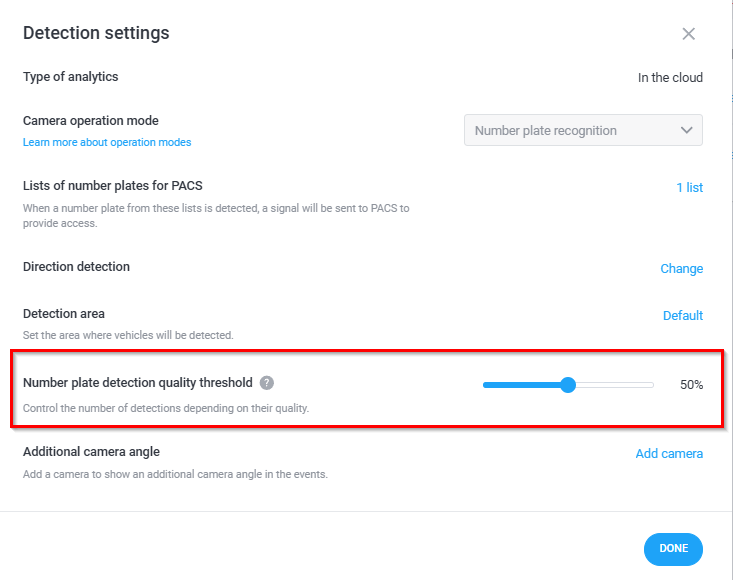
4. License plate detection quality threshold:
This setting allows you to adjust the system's sensitivity to image quality for recognition.
The higher this value, the higher the requirements for image quality. This reduces the number of recognized plates but allows the system to recognize plates more accurately.
The default value is 50%.
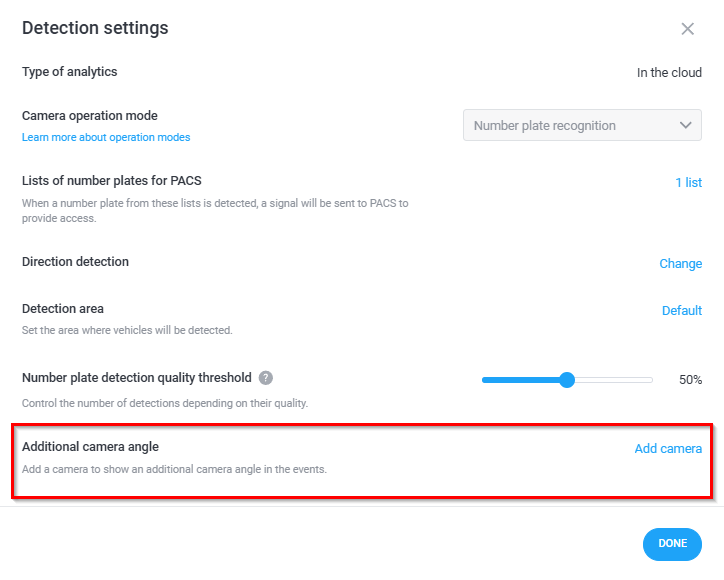
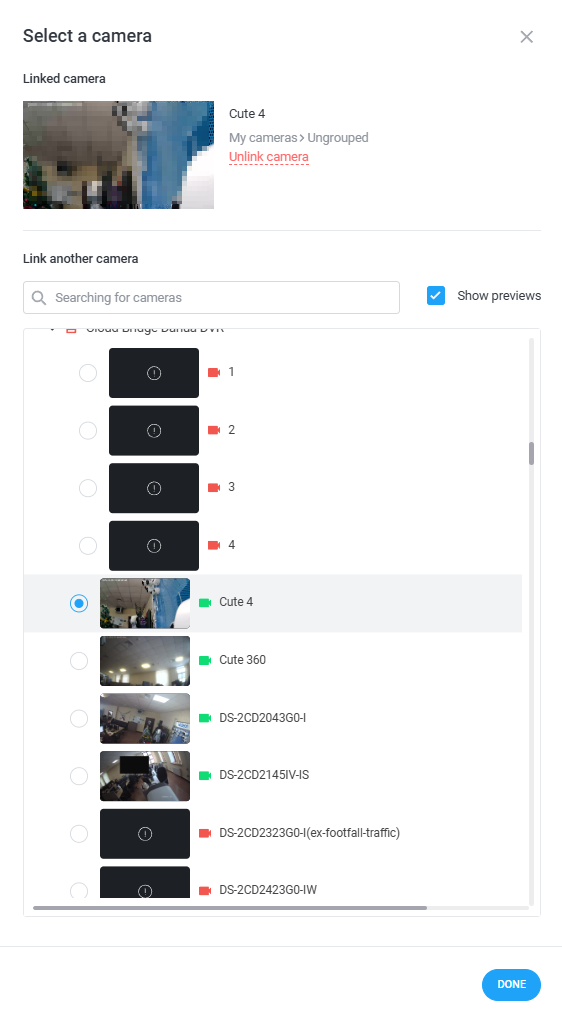
5. Additional angle:
You can link any additional camera to the ANPR camera so that an additional filming angle appears in the license plate recognition events.