
This guide explains how to manage your camera's subscription plan directly from your personal account. You'll learn the steps to connect a new plan, renew your current one, or switch to a different plan for one or multiple cameras at once.
1. How to сonnect a plan?
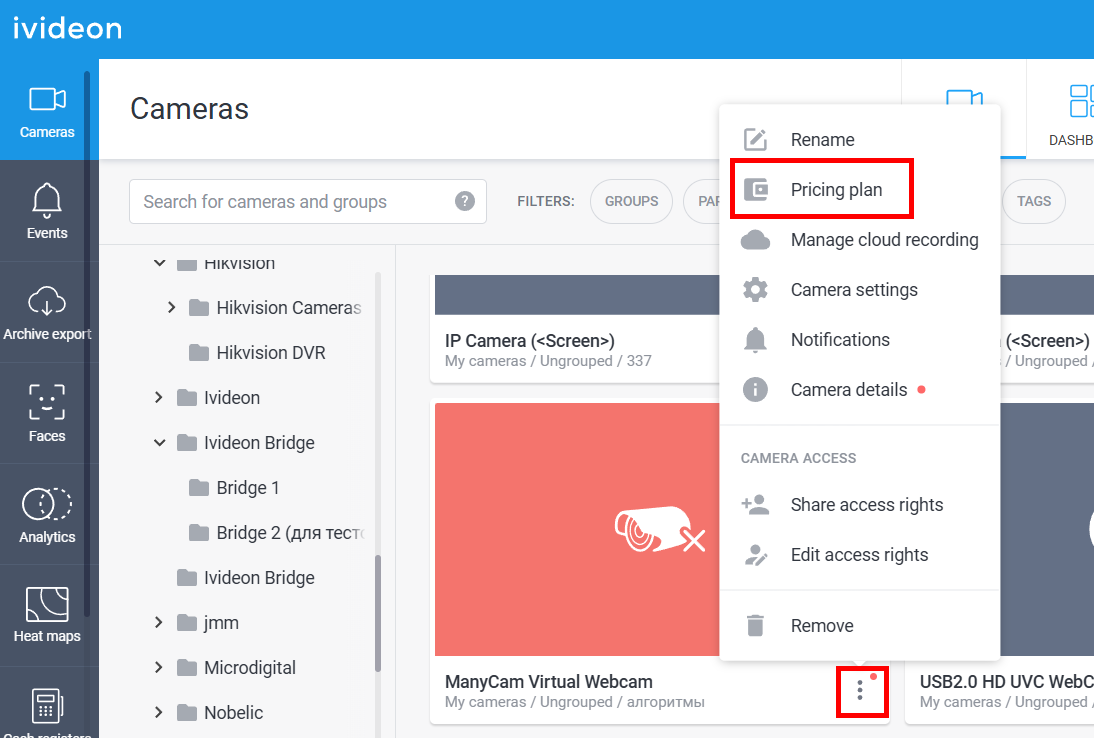
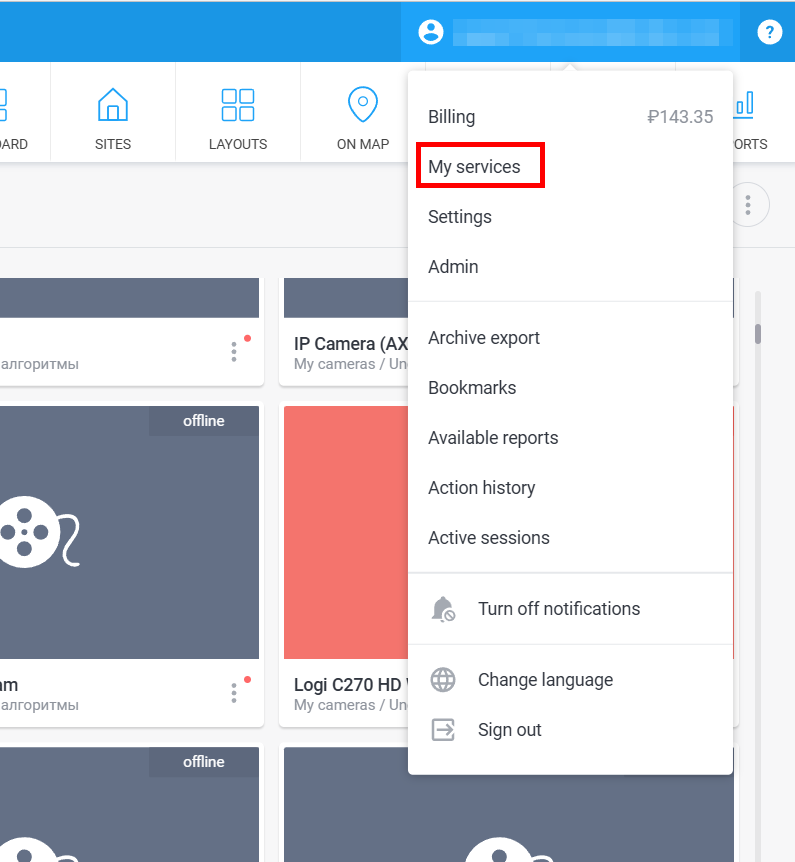
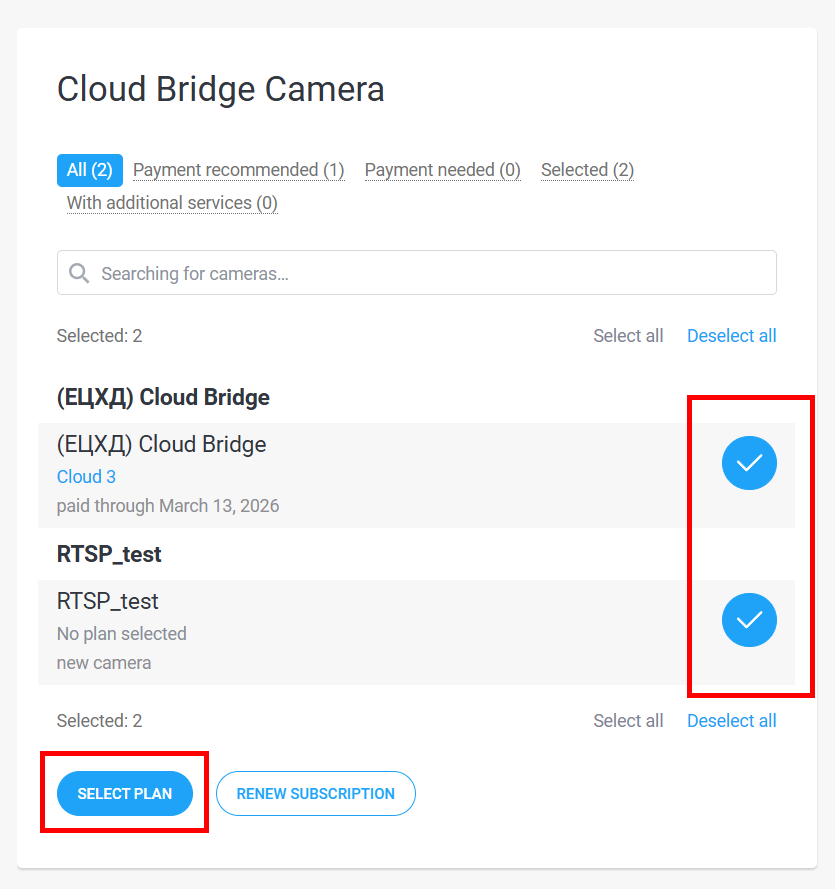
1. You can connect a plan for a single camera or for several cameras at once:
|  |   |
2. Find the necessary plan and click Select. Video analytics plans are available on their respective tabs. | 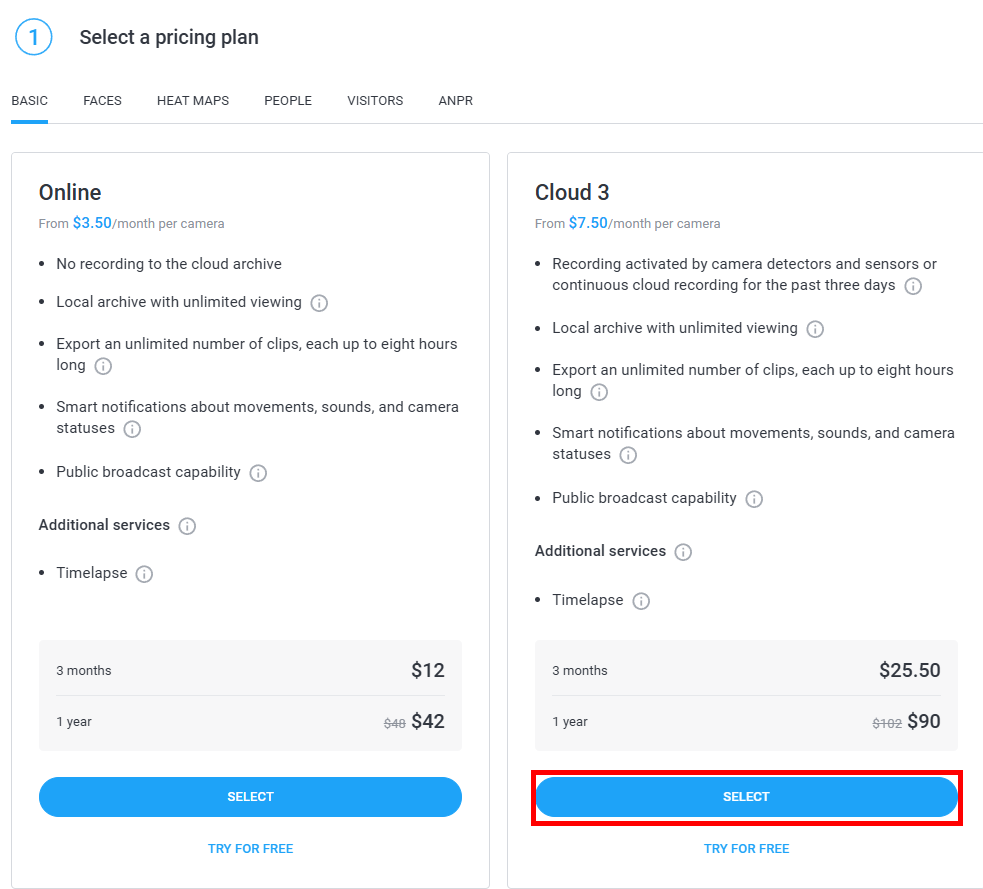 | |
3. Select additional services if needed and press Continue. | 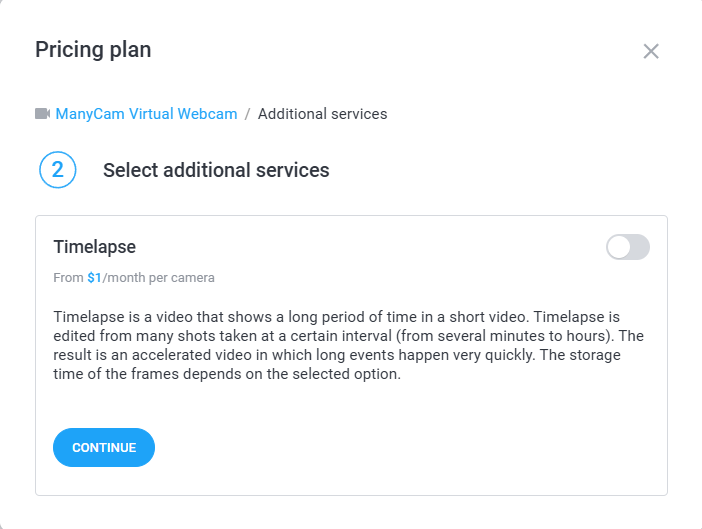 | |
4. Select subscription duration: 3 months or 1 year. Press Go to payment. | 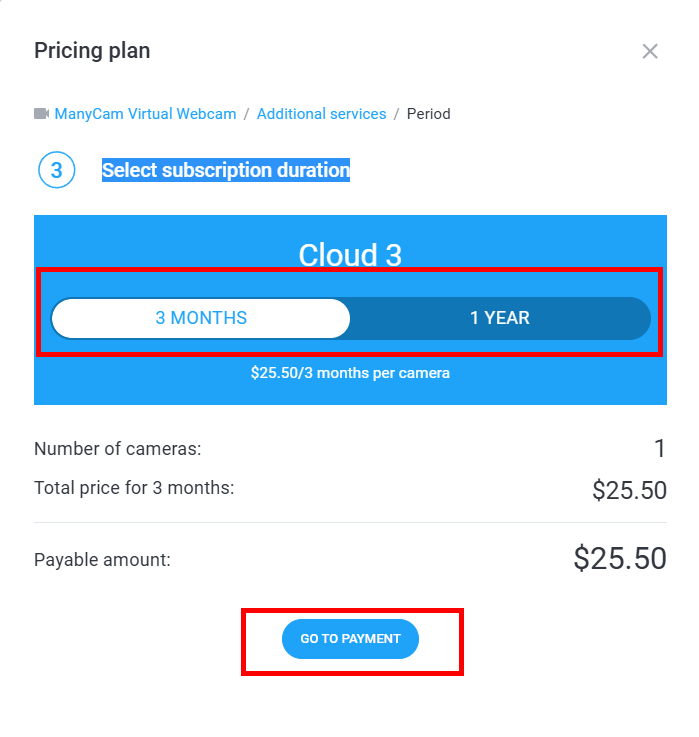 | |
3. Choose one of the available payment methods, fill in the fields and press Pay. Please note! If you pay by card, you'll be prompted to Save card. It will then be used for automatic renewals. You’ll receive a notification before each renewal. You can disable automatic renewal at any time in the application or by contacting us at support@ivideon.com Promo codes can be obtained when ordering from our online store, purchasing at retail stores, or in Ivideon email newsletters. | 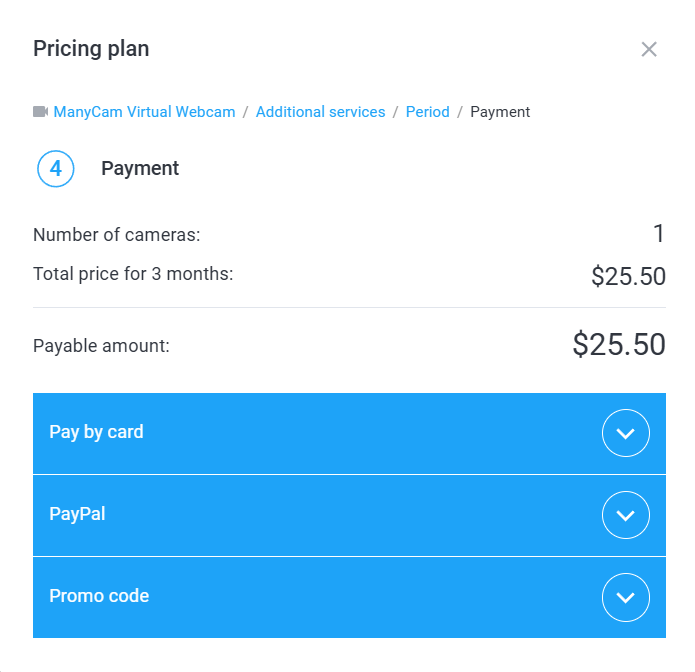 | 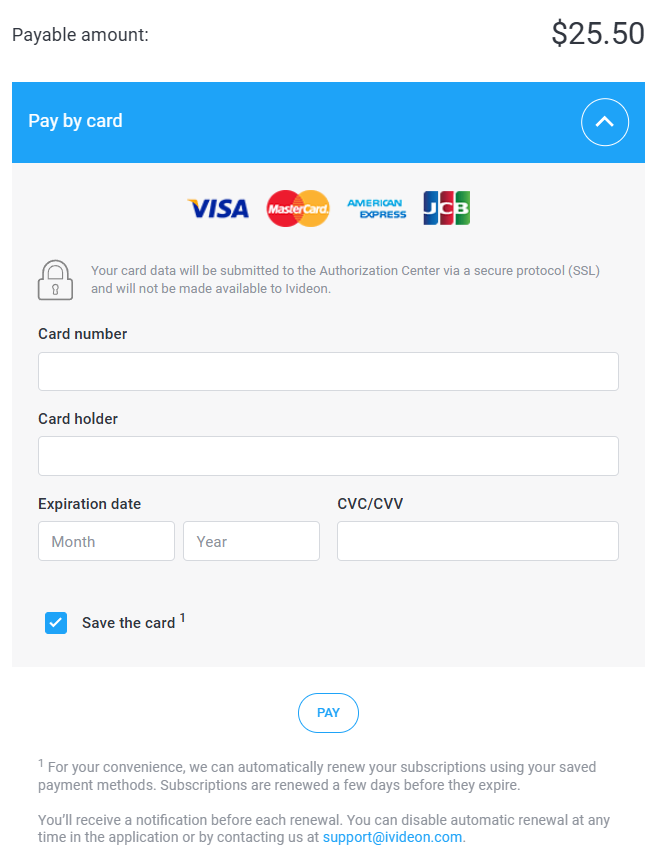 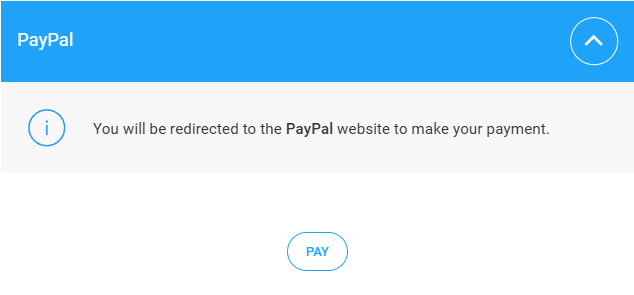 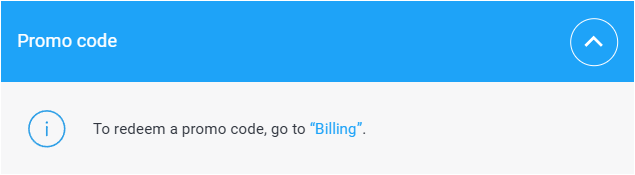 |
2. How to renew a plan?
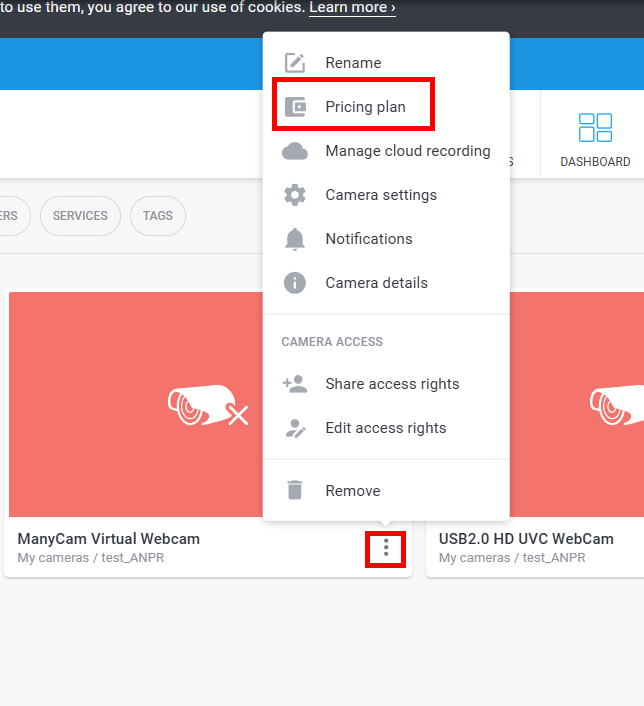
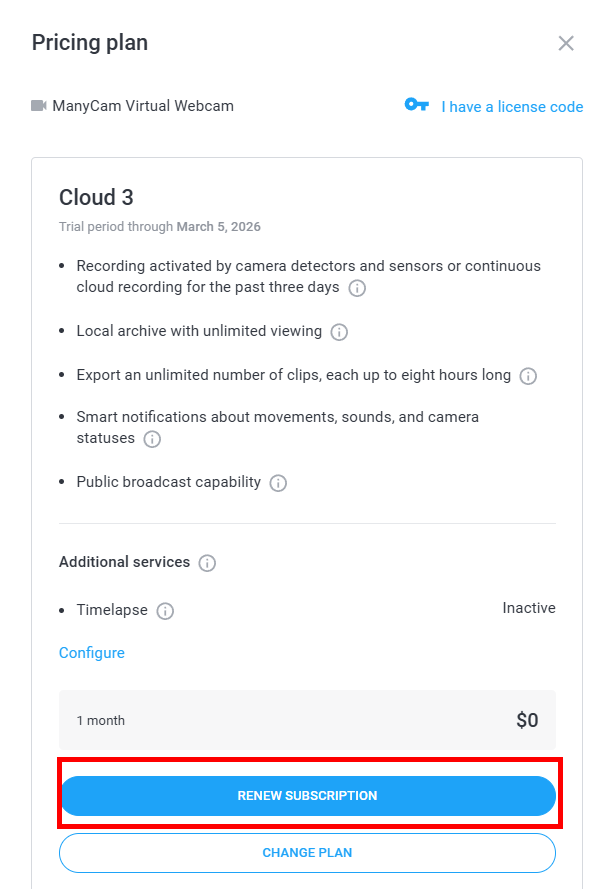
1. You can renew a plan for a single camera or for several cameras at once:
|   | 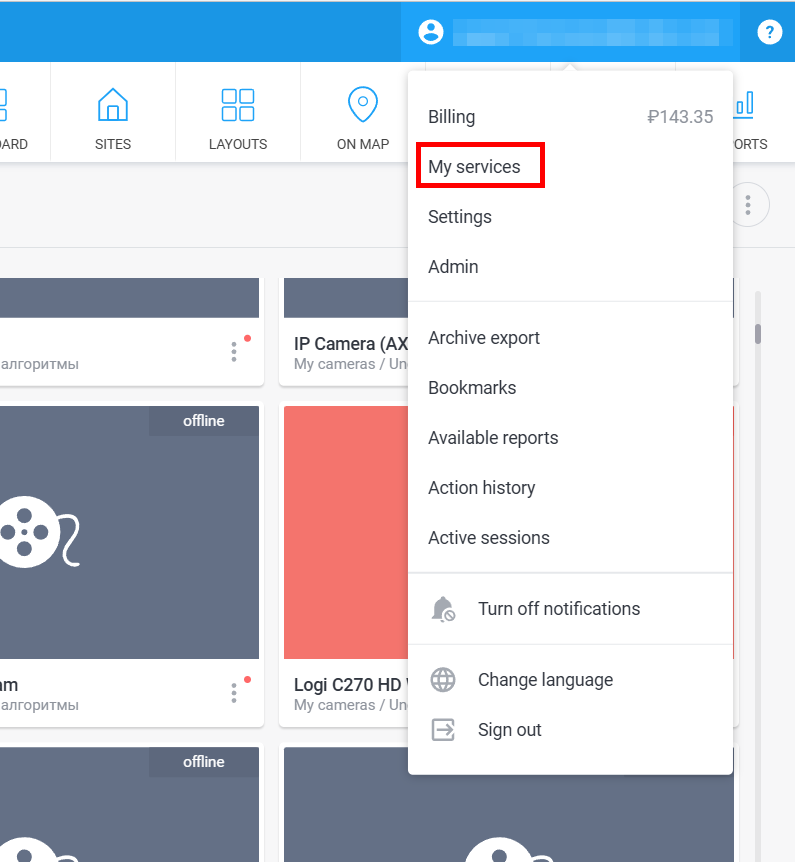 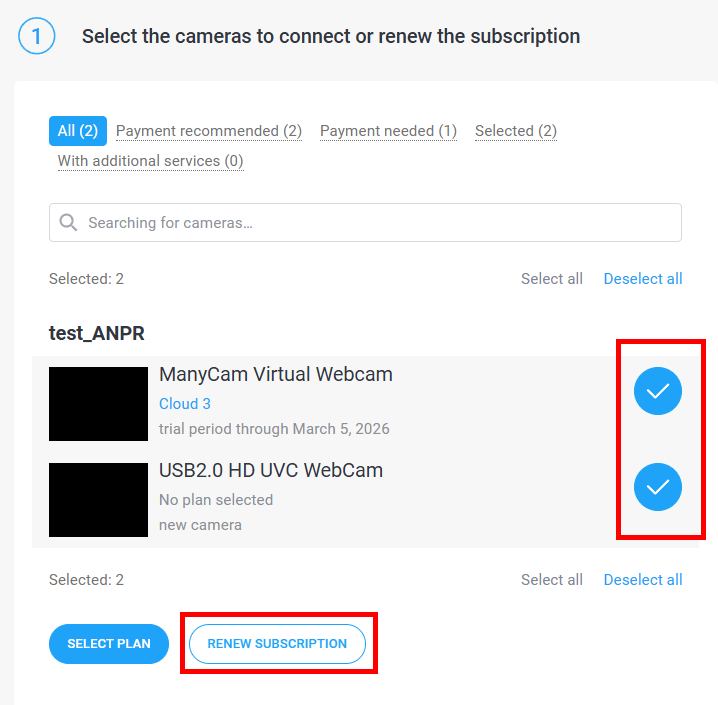 |
2. Select the renewal period: 3 months or 1 year. Press Go to payment | | |
4. Choose one of the available payment methods, fill in the fields and press Pay. Please note! If you pay by card, you'll be prompted to Save card. It will then be used for automatic renewals. You’ll receive a notification before each renewal. You can disable automatic renewal at any time in the application or by contacting us at support@ivideon.com. Promo codes can be obtained when ordering from our online store, purchasing at retail stores, or in Ivideon email newsletters. | | |
3. How to change a plan?
1. You can change a plan for a single camera or for several cameras at once:
| 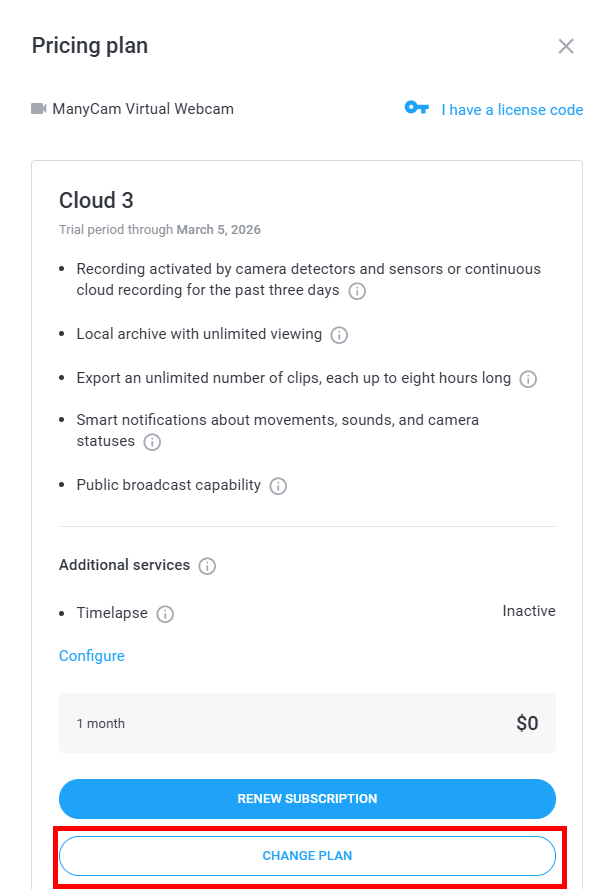 | |
2. Select the new plan and click Connect.
| | |
3. Select additional services if needed and press Continue. | | |
4. When switching to a new plan, the current one will be disconnected, and funds for the unused period will be refunded to your account balance.
| 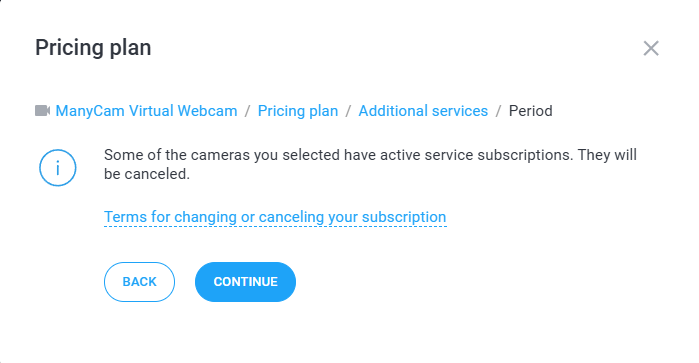 | |
5. Choose the subscription period: 3 months or 1 year and click Go to payment | | |
6. Choose one of the available payment methods, fill in the fields and press Pay. Please note! If you pay by card, you'll be prompted to Save card. It will then be used for automatic renewals. You’ll receive a notification before each renewal. You can disable automatic renewal at any time in the application or by contacting us at support@ivideon.com. Promo codes can be obtained when ordering from our online store, purchasing at retail stores, or in Ivideon email newsletters. | | |